You can download the SimpleImage helper module, which makes image manipulation more intuitive and straightforward, for use in all the exercises.
The SimpleImage module uses the Pillow image library so in order for SimpleImage to work properly, you need to install Pillow on your machine.
Q1.
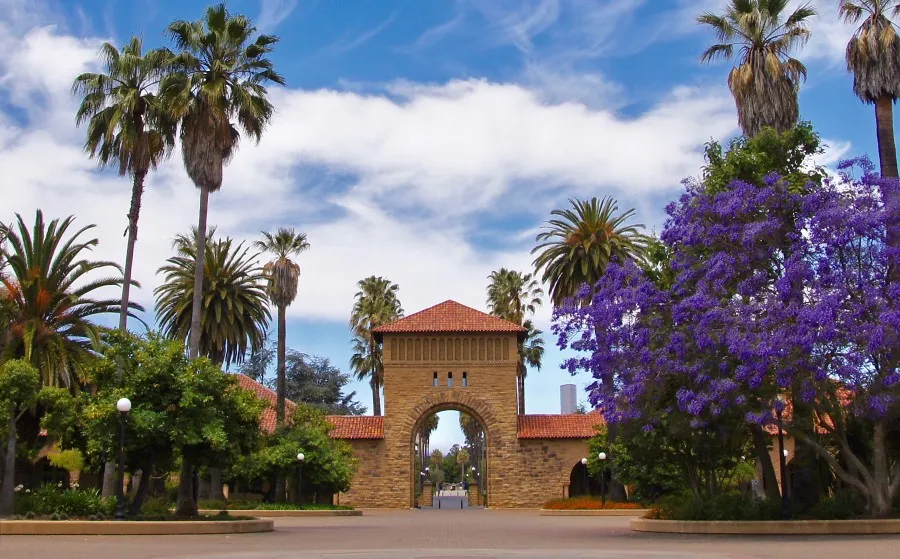
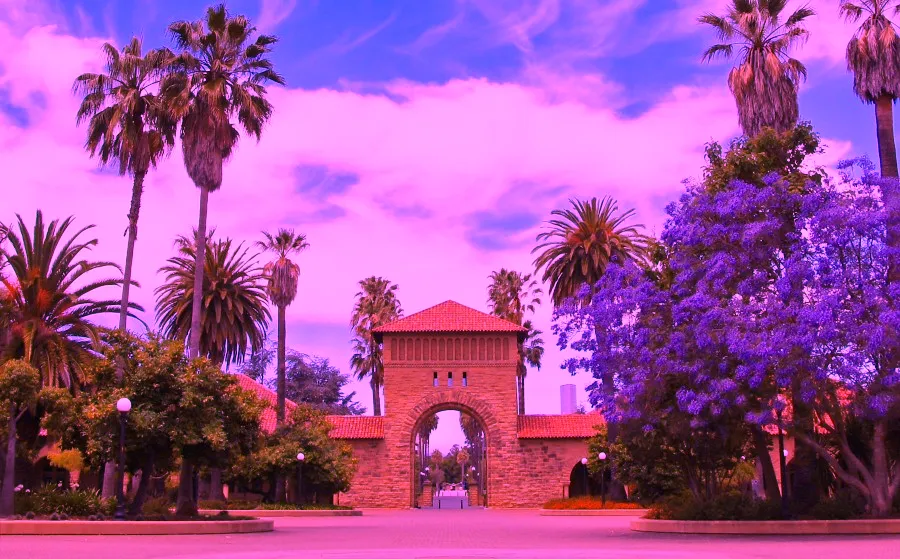
Imagine you’re building a simple photo-editing tool for your friend’s photography blog. One of the popular looks they love is a warm vintage sunset filter that boosts reds and blues, but slightly mutes greens - just like the glow you see when the sun is setting over the horizon.
Instructions
- Ask the user for an image filename (or uses a default if they just press Enter) and load the selected image.
- Apply the “Vintage Sunset” filter by updating every pixel’s color:
new_red = old_red x 1.5new_green = old_green x 0.7new_blue = old_blue x 1.5
- Show the image before and after applying the filter, so your friend can instantly compare the edited image against the original.
Expected Output
Original image:
Edited image:
Q2.
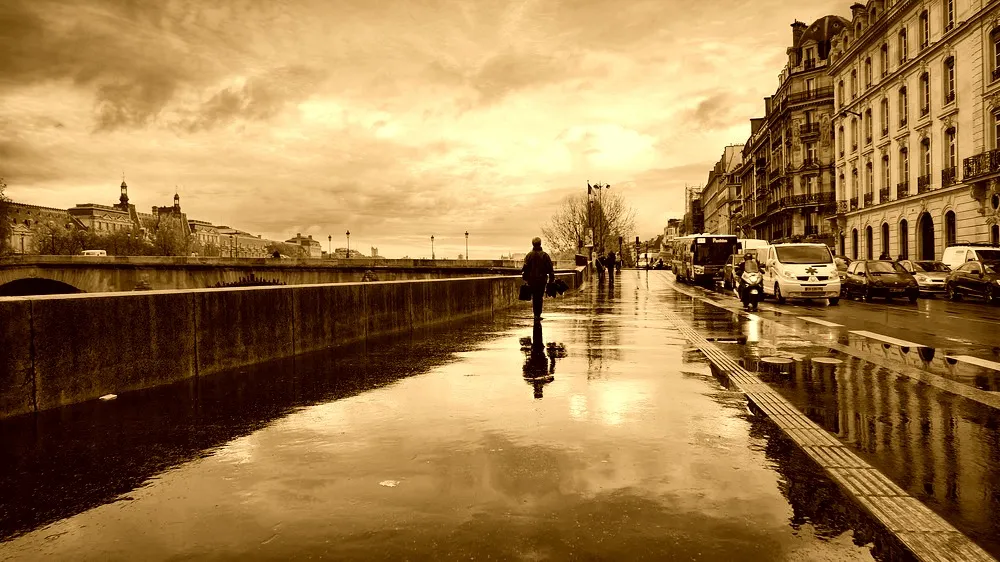
Imagine you’re adding an Instagram-style Sepia filter to your photo tool - a warm, brownish tone that gives pictures a nostalgic, old-time feel and helps freeze those good memories.
Instructions
- Ask the user for an image filename (or uses a default if they just press Enter) and load the selected image.
- Apply the Sepia filter to every pixel using the following transform (then cap each channel at 255):
new_red = 0.393 * old_red + 0.769 * old_green + 0.189 * old_bluenew_green = 0.349 * old_red + 0.686 * old_green + 0.168 * old_bluenew_blue = 0.272 * old_red + 0.534 * old_green + 0.131 * old_blue
- Show the image before and after applying the filter, so your friend can instantly compare the edited image against the original.
Expected Output
Original image:
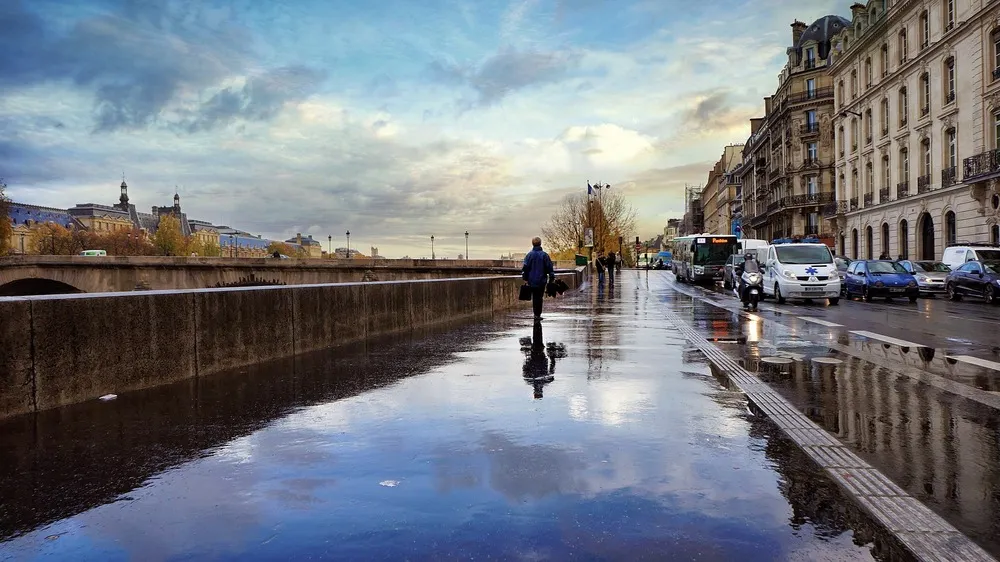
Edited image:
Q3.
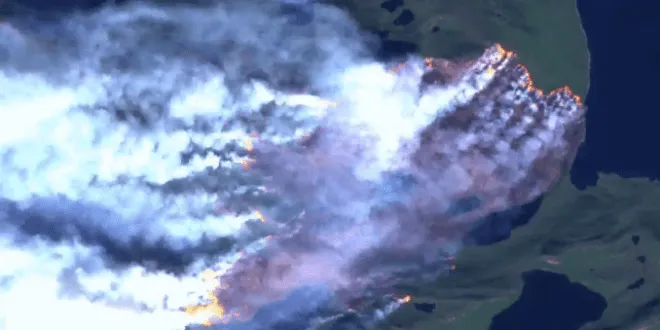
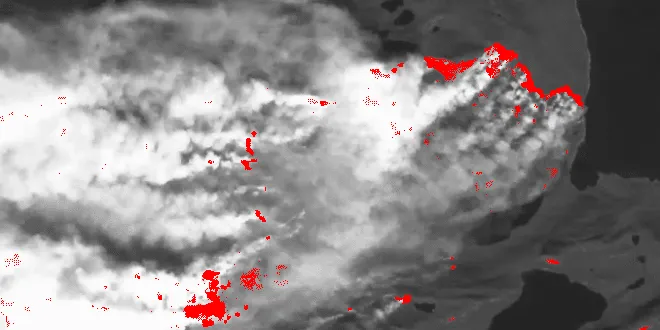
You’re working with environmental scientists who need an easy way to spot active forest fires in a satellite photo of Greenland's 2017 fire season. Your job is to write a function that lights up the burning areas in bright red and turns the rest of the landscape into shades of gray, so the fires jump right off the screen.
Instructions
- Ask the user for an image filename (or uses a default if they just press Enter) and loads the selected image.
- For each pixel, compute the average of its red, green and blue values. If the pixel’s red component is greater than equal to that average, it’s sufficiently red, indicating fire.
- Highlighting Fires:
- If a pixel is sufficiently red: set red = 255, green = 0, blue = 0
- else compute the pixel’s grayscale value by averaging its RGB channels and set red = green = blue = that average.
- Finally, show the original image side by side with the processed version for comparison.
Expected Output
Original image:
Edited image:
Q4.
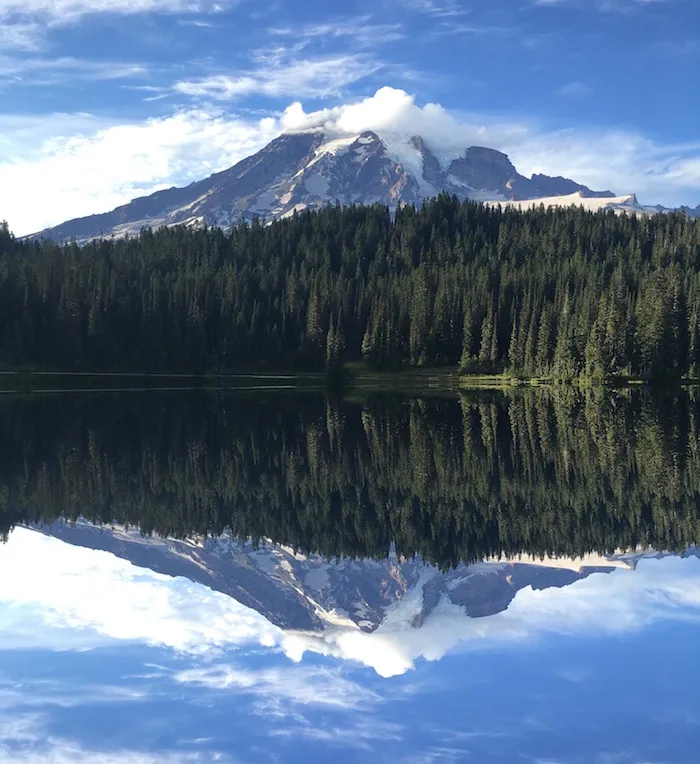
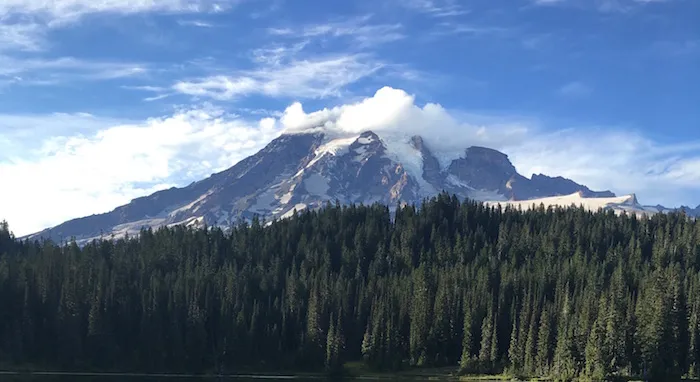
You’re building a simple photo-editing feature for a nature website. Your friend wants to add a mirror reflection effect beneath each photo, as if the image is sitting on a calm lake. The reflected image should flip the original vertically, creating a seamless reflection.
Instructions
- Ask the user for an image filename (or uses a default if they just press Enter) and loads the selected image.
- Create a new blank image that is twice as tall as the original (same width), copies the original into the top half, then generate a vertical reflection of the original into the bottom half, so the first row of the original becomes the last row of the output and so on.
- Show the image before and after applying the filter, so your friend can instantly compare the edited image against the original.
Expected Output
Original image:
Edited image: