We have a sample web-page which looks like this.
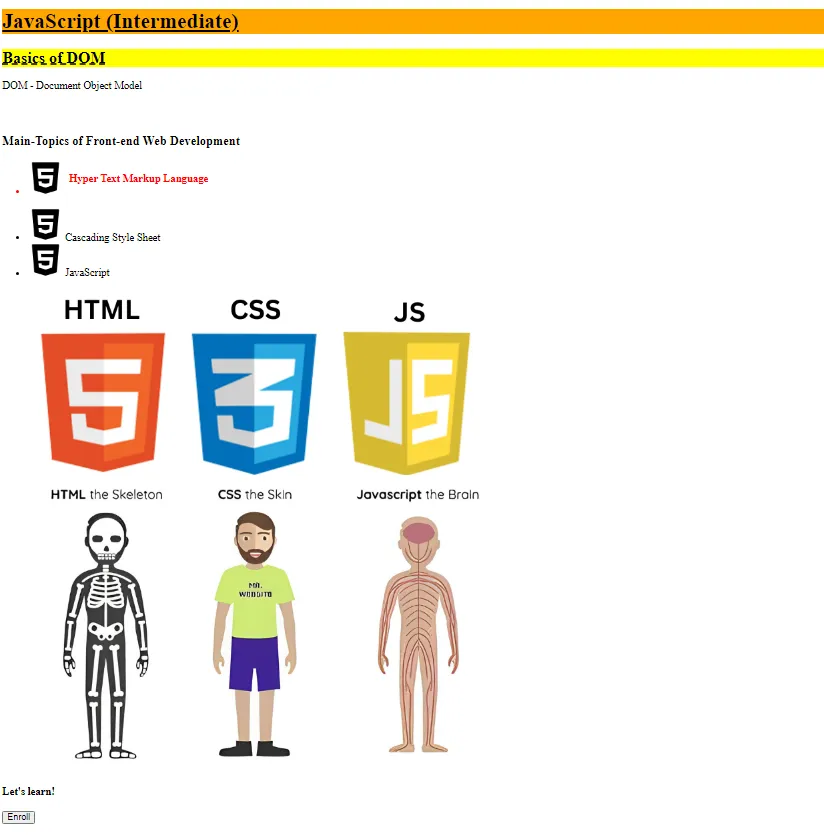
Below, are the respective HTML & CSS files for this web-page.
<!DOCTYPE html>
<html lang="en">
<head>
    <meta charset="UTF-8" />
    <meta name="viewport" content="width=device-width, initial-scale=1.0" />
    <title>JS Basics</title>

    <link rel="stylesheet" href="styles.css" />
</head>
<body>
    <h1 id="main-heading">JavaScript (Intermediate)</h1>

    <div class="sub-section">
        <h2 id="sub-heading">Basics of DOM</h2>
        <p>DOM - Document Object Model</p>
    </div>

    <h3>Main-Topics of Front-end Web Development</h3>
    <ul>
        <li class="list-items">
            <div>
                <img src="html.png" alt="HTML-icon" />
                <span>Hyper Text Markup Language</span>
            </div>
        </li>
        <li>
            <div>
                <img src="html.png" alt="CSS-icon" />
                <span>Cascading Style Sheet</span>
            </div>
        </li>
        <li>
            <div>
                <img src="html.png" alt="JS-icon" />
                <span>JavaScript</span>
            </div>
        </li>
    </ul>

    <img src="webdev.png" alt="webdev" />

    <h3 class="topic-heading">Let's learn!</h3>
    <button>Enroll</button>

    <script src="app.js"></script>
</body>
</html>
#main-heading {
text-decoration: underline solid;
background-color: orange;
}
.sub-section {
padding-bottom: 30px;
}
#sub-heading {
text-decoration: underline dashed;
background-color: yellow;
}
.topic-heading {
text-decoration: underline double;
text-underline-offset: 5px;
color: green;
}
.list-items {
color: red;
font-weight: 600;
padding-bottom: 20px;
}
.list-items div {
display: flex;
align-items: center;
gap: 10px;
}
.btn {
font-weight: bold;
font-size: 25px;
padding: 20px 50px;
}
.btn-active {
background-color: lightgreen;
border: 5px solid green;
}
.btn-inactive {
background-color: orange;
border: 5px solid red;
}Below, all the image assets used for the above page are provided.
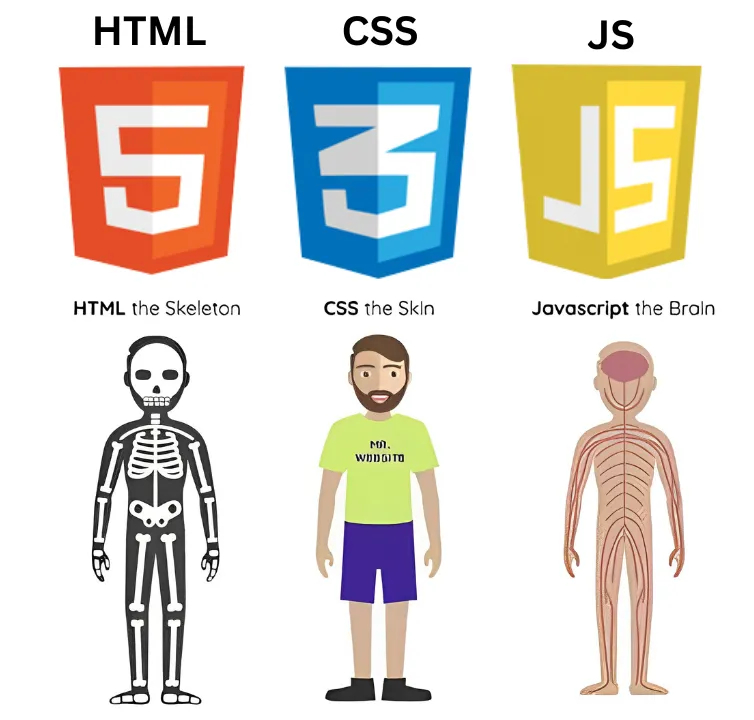


While naming your image files and choosing their directory location, please follow the above HTML code. If you won’t name & put the files according to HTML, it won’t be able to find the image files. Though if you know what you are doing then you can use whatever assets you like and store them wherever you want, by changing the HTML as per your needs.
Currently there are some inconsistencies within this page, we have to fix it by manipulating the HTML & CSS using JS.
Let’s fix it one by one.
The image icons for CSS & JS list items are the same as HTML currently. Set the image of CSS & JS items to their respective icons using
setAttribute()but before setting the image first ensure that you are setting the correct icon for the matching image element. (for e.g. check if thealtof an image isCSS-iconthen only set css icon image for it.)Use getAttribute() to first know what is the value of alt for the respective image element.
The CSS & JS list items don’t have the styling similar to HTML one. Add the class applied to HTML for CSS & JS list items as well.
"Main-Topics of Front-end Web Development"heading looks dull at the moment. Apply thetopic-headingclass to it for the styling.“Let’s Learn!”heading has a similar styling to the above heading, remove styling related class from it.Apply the button related styling (
btnclass) toEnrollbutton.Take a user input saying
"Write 'yes' if you want to enroll, otherwise 'no'”. Now if the user says ‘no’ then togglebtn-inactiveclass for the enroll button andbtn-activeif user says ‘yes’.